Sign up and sign in
Paths by portal domain
The ECI portal domain and sign-in method depend on your organization type. Check the domain of the portal URL issued to your organization, identify which path applies, and follow the matching procedure below.
- Elice-integrated organizations: organizations that already use other Elice services such as EliceLXP. They sign in to ECI with their existing Elice account (accounts.elice.io) via SSO.
- Standalone organizations: organizations that adopted ECI on its own. They sign in with an ECI-only account (email, password, OTP), issued separately from any Elice account.
You can tell which type you are immediately from the portal URL (see the table below).
| Domain | Type | Sign-in method |
|---|---|---|
<organization>.elice.io | Elice-integrated organization | Elice account SSO (accounts.elice.io) |
portal.elice.cloud (commercial zone)portal.gov.elice.cloud (public zone) | Standalone organization | ECI-native account (email, password, OTP) |
Elice-integrated organizations
These organizations already use Elice services. They sign in to the ECI portal with their existing Elice account. The portal domain takes the form of an org-specific subdomain (<organization>.elice.io).
- Open the portal URL.
- On the sign-in screen, click Sign in with Elice account. You'll be redirected to the
accounts.elice.ioSSO page. - Complete Elice account authentication and you'll be returned to the ECI portal automatically.
Integrated organizations sign in with an Elice account. If you don't have one yet, sign up at accounts.elice.io first; once your administrator adds that account's email to the organization as a user, you can sign in immediately. Account details such as password and two-factor authentication are all managed at accounts.elice.io.
Organization admins in integrated organizations invite users by Elice account email at https://<organization>.elice.io/admin/org/members.
Standalone organizations
You receive an ECI-only account that is independent from any Elice account. The flow requires an invitation email and OTP authentication. The portal is provided in two zones.
- Commercial zone:
https://portal.elice.cloud - Public zone:
https://portal.gov.elice.cloud
Standalone customers cannot create their own organization. During onboarding, the Elice operations team provisions the organization and the initial admin account; from there, the admin invites additional users through the portal.
Sign-up
-
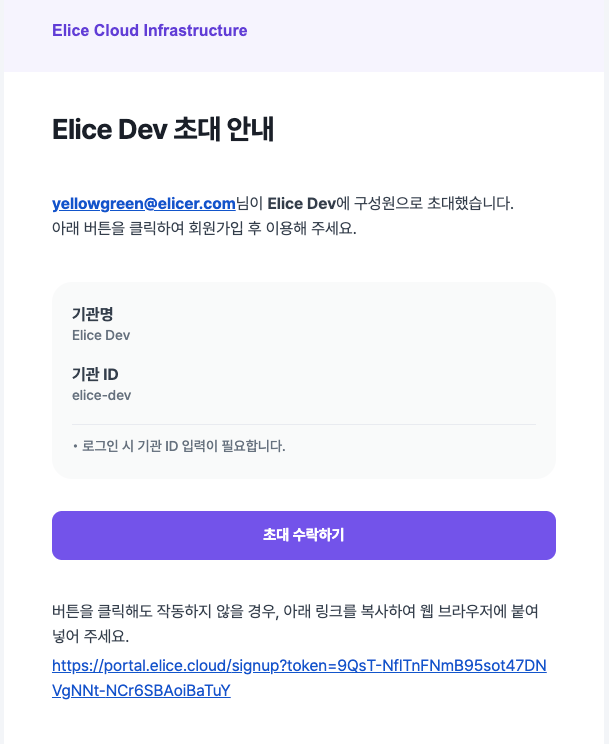
Click the link in the invitation email you received from your admin. The email contains both the sign-up link and the Organization Identifier.
-
Enter a password, then scan the displayed QR code with an OTP authenticator app (Google Authenticator, Authy, etc.).
-
Enter the 6-digit OTP code shown in the app and click Complete sign-up.
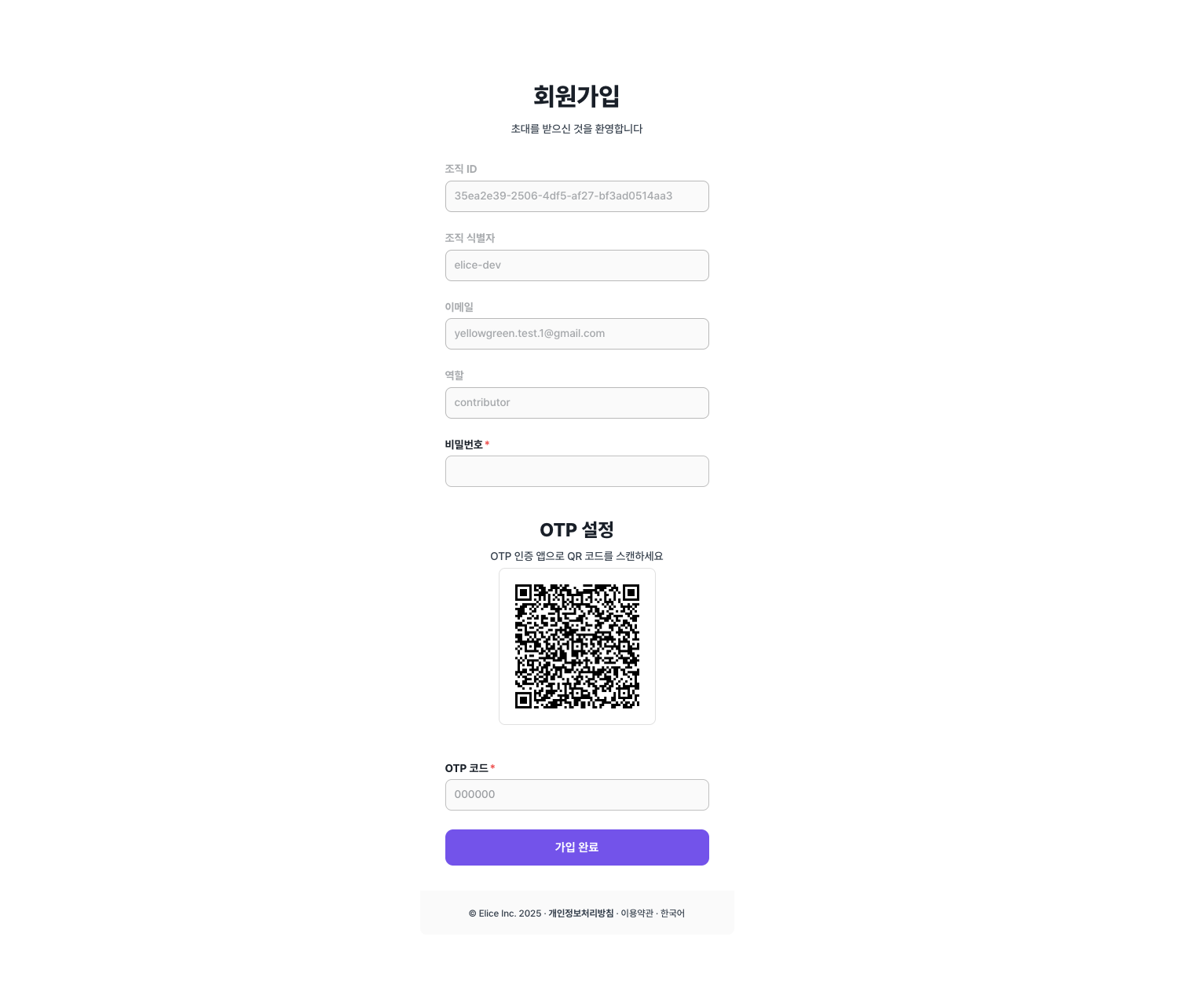
- At least 10 characters
- Must include 3 or more of: uppercase, lowercase, digit, special character
- No 3 identical characters in a row (e.g.
aaa,111) - No 3 sequential letters or digits in a row (e.g.
abc,321) - Must not contain the email local part
- Expires every 180 days (reset required afterwards)
If the link has expired, ask your admin to re-invite you.
Sign-in
Open the portal URL for your zone and enter:
- Organization Identifier — from the invitation email or your admin
- Password
- OTP code — the current 6-digit code from your authenticator
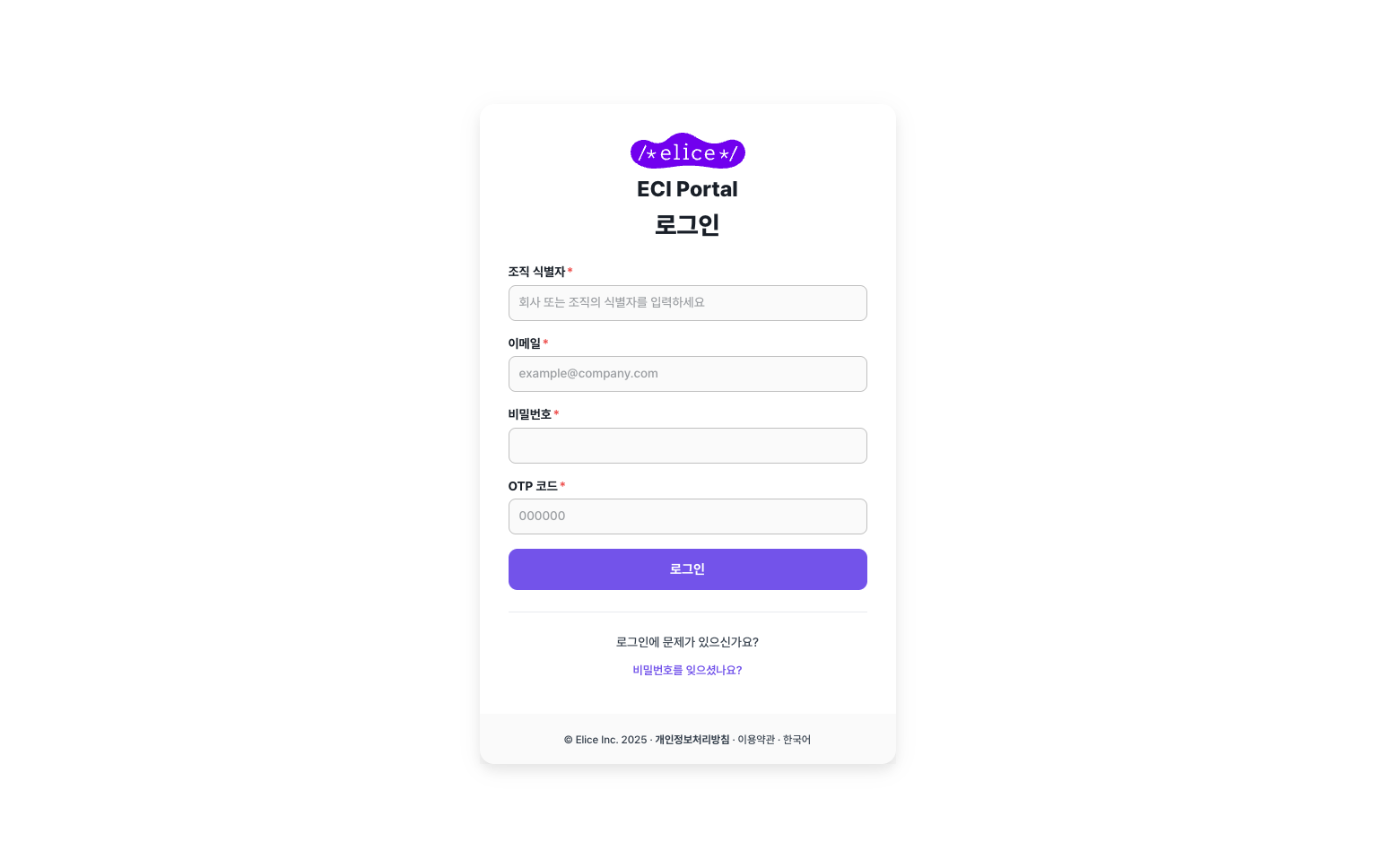
If you've forgotten your password, use the Forgot your password? link on the sign-in screen to receive a reset email.
Next steps
- Create your first GPU VM: create and connect to a GPU VM after signing in
- Glossary - Organization: what the organization identifier is