VM access methods
Overview
There are two ways to connect to a running VM. Pick whichever fits the situation.
| Method | Characteristics | Best for |
|---|---|---|
| Web console | Connect from the browser | A quick session with no SSH setup |
| SSH | Terminal-based, most general | Day-to-day development and operations |
Web console
You can open a terminal directly from the browser, without a public IP or SSH setup.
- Under Compute > Virtual Machines, pick a running VM.
- Click the Web Console tab.
- Sign in with your username and password.
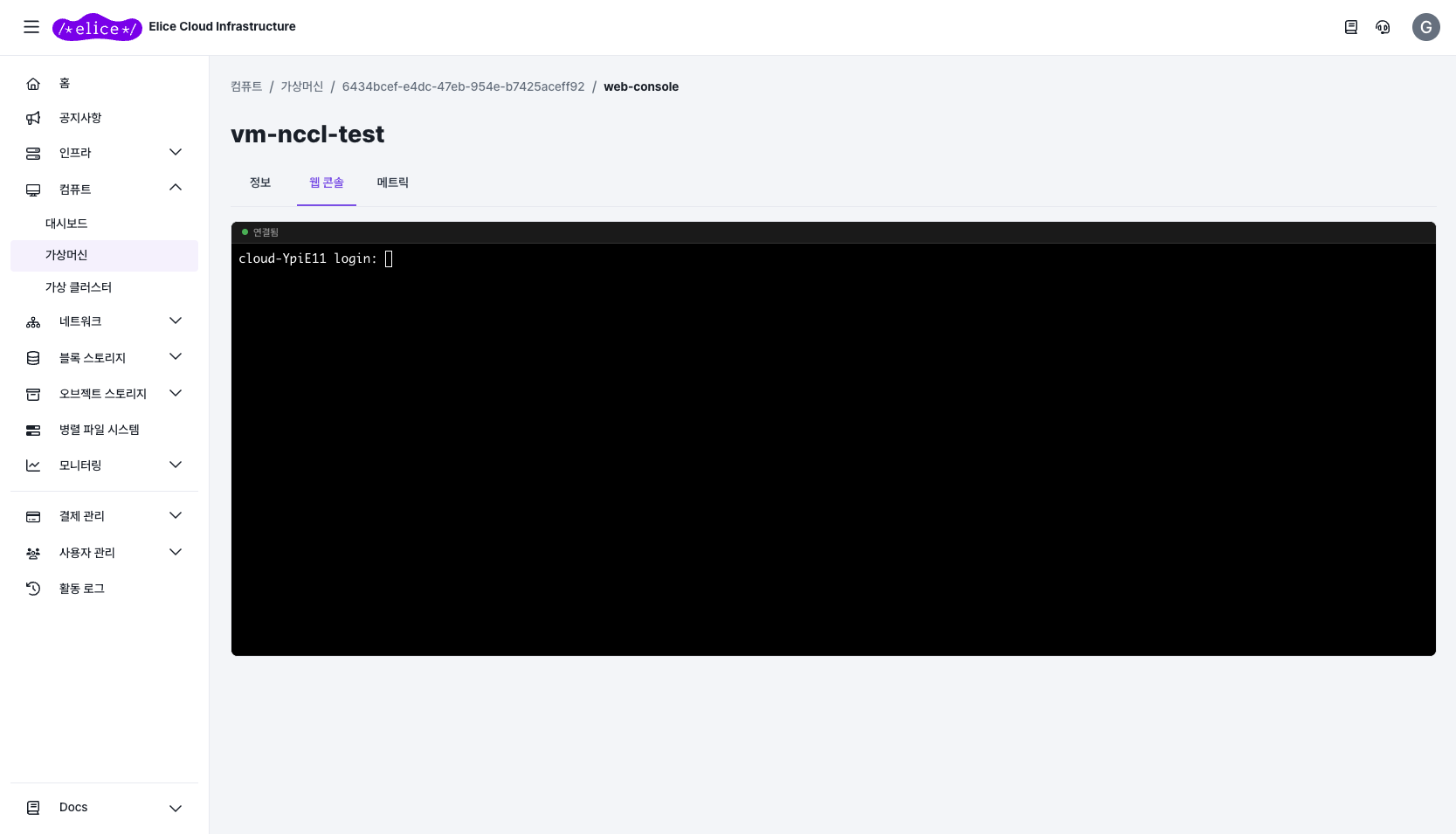
Web console requirements
- The VM must be in the Running state (in other states you'll see "Please try again in a moment")
- Your account must have Web Console Access permission (built-in roles all have it)
- The session TTL is 30 minutes; use the Reconnect button to re-establish when it expires
SSH
Password authentication
ssh <username>@<public-ip>
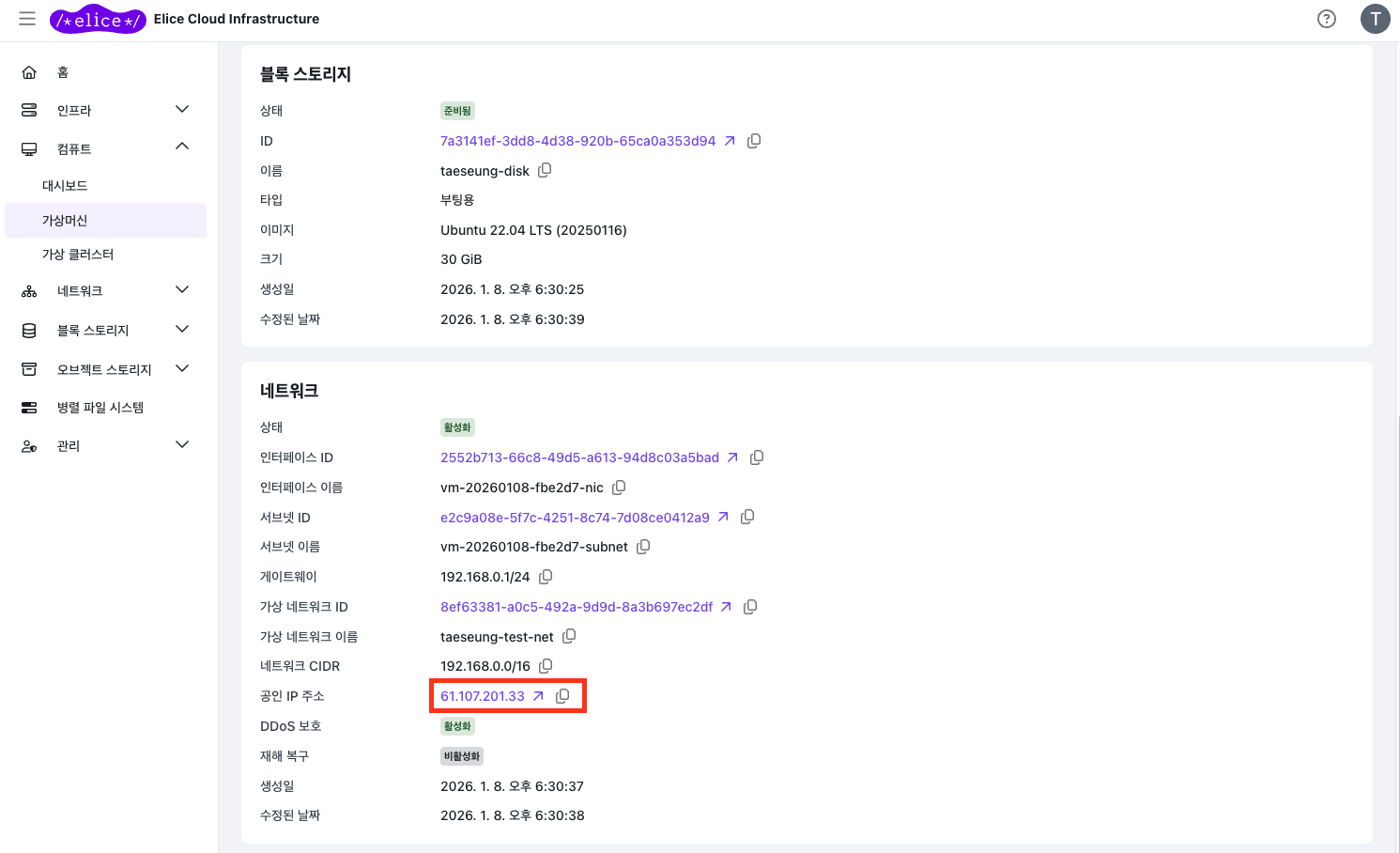
If it fails to connect, see SSH connection issues.
SSH key authentication (recommended)
Using an SSH key instead of a password is both safer and more convenient.
Step 1: Generate an SSH key locally
ssh-keygen -t ed25519 -C "my-eci-key"
Step 2: Copy the public key to the VM
ssh-copy-id <username>@<public-ip>
Step 3: Connect with the key
ssh -i ~/.ssh/id_ed25519 <username>@<public-ip>
Next steps
- SSH connection issues: what to try when SSH won't connect
- Operating spot VMs: saving cost with spot VMs